How it works
Getting your Apple Wallet business card takes a few steps:
- Create a free Lynkle account and build your digital business card with your contact details, social links, and branding.
- From your account dashboard on an iPhone, tap "Add to Apple Wallet" beneath your card.
- Review the pass preview and tap "Add" to save it in your own Wallet.
- When you meet someone, open Wallet and show your card's QR code. They scan it with their phone's camera, tap the link, and choose "Save Contact" on your Lynkle card.
Note: The "Add to Apple Wallet" button appears only in browsers on iPhone.
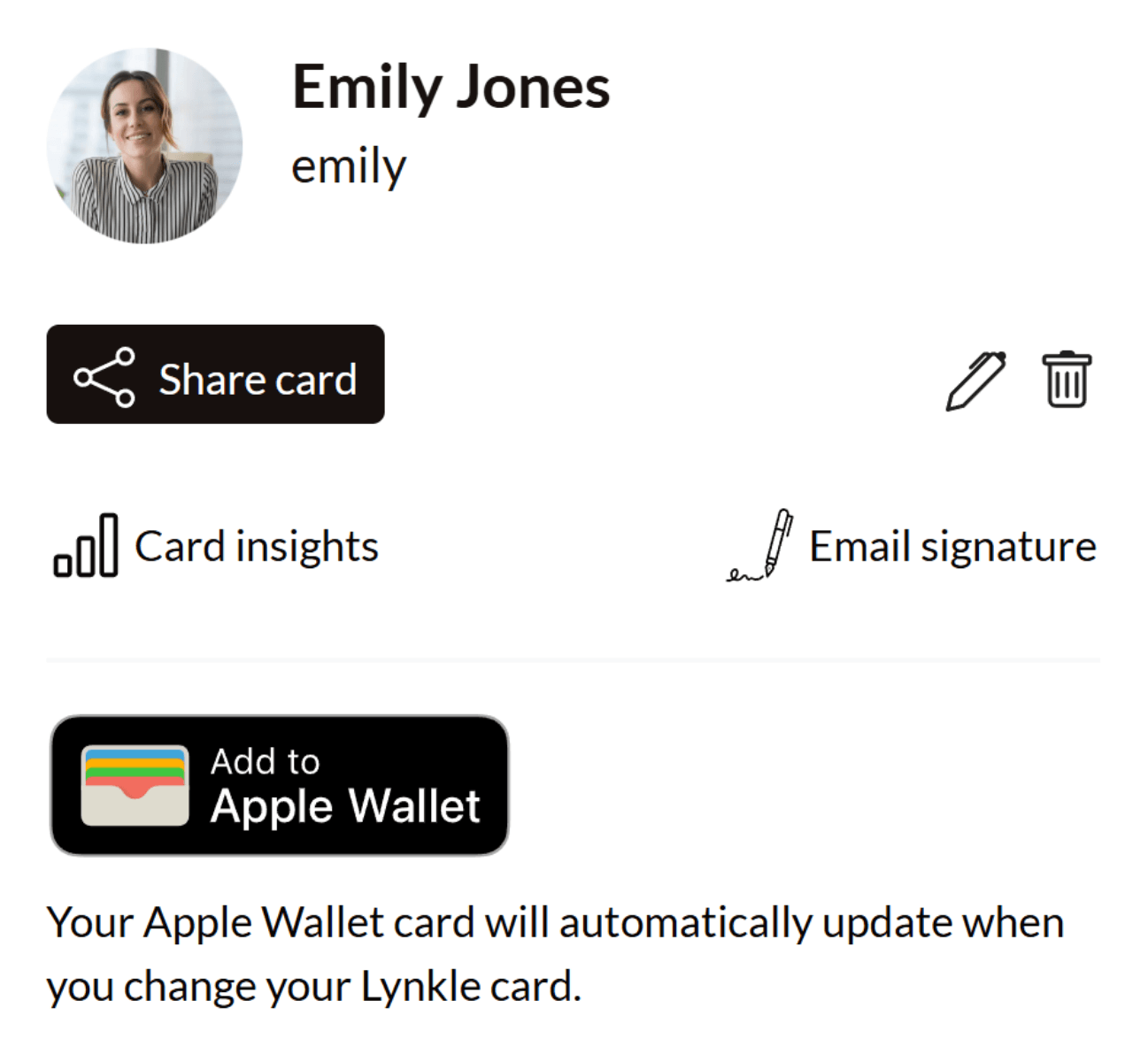
Your Wallet pass stays with you
Think of your pass as a stack of business cards in your pocket. Each scan is like handing someone one card. You keep the pass in your Wallet and use it again with the next person you meet.
You do not need to send the Wallet file (.pkpass) to a recipient. That file is for adding the pass to your own Wallet. To share by text or email, send your Lynkle card link instead. The recipient opens your card and saves your details to their phone's contacts.
Follow the Apple Wallet sharing guide for step-by-step instructions.
Why an Apple Wallet business card matters
Traditional paper cards get lost, outdated, or forgotten. An Apple Wallet business card lives on the device you already carry everywhere. When you meet someone at a conference, coffee shop, or chance encounter, you can share your contact information quickly, without fumbling for a card or asking them to download an app.
Keep your pass in Apple Wallet for in-person introductions. For remote introductions, copy your card link from Lynkle and send it in a message. The recipient opens the same digital business card either way.
For phone-to-phone NFC, use Tap to Share in the Lynkle iOS app. Tap to Share is separate from Apple Wallet, requires Lynkle Pro or Teams, and is available only in the European Economic Area. Recipients still do not need the app.
Key benefits
- Always accessible: Your card is in Apple Wallet, one swipe away on your lock screen or in the Wallet app.
- Auto-sync updates: Change your phone number, job title, or links, and your Apple Wallet pass updates automatically.
- Free QR sharing: Show the QR code in your Apple Wallet pass so the recipient can scan it.
- Optional in-app Tap to Share: Use phone-to-phone NFC in the Lynkle iOS app with Pro or Teams only in the European Economic Area.
- No recipient app required: Recipients view your card in their browser.
- Environmentally friendly: Eliminate paper waste from traditional business cards.
Who it's best for
An Apple Wallet business card works for anyone who networks regularly:
- Sales professionals who meet prospects at events and need to share contact info quickly.
- Entrepreneurs and freelancers who want a professional, modern way to exchange details.
- Real estate agents who meet clients at properties and need instant contact sharing.
- Conference attendees who want to network efficiently without carrying stacks of paper cards.
For organizations that need consistent digital card deployment and advanced team features, see our Digital business cards for teams.
Privacy & security
Control what you share and when. Lynkle's Private Card Sharing feature uses expiring links. Open the current pass in Wallet and show its QR code when you meet someone, so they receive the current link. Changes to your privacy settings sync to your pass automatically.
If you use an Android phone, Lynkle also supports Google Wallet business cards for keeping your own card ready on your phone. The people you meet can scan your QR code with either iPhone or Android, whichever Wallet you use.
Ready to start your digital business card journey?
Get started for freeTrusted by the best