A digital business card for LinkedIn is a shareable card link that you add to your LinkedIn profile and send in relevant DMs. It gives people one place to save your direct contact details, visit your website, book time, and return to your LinkedIn profile.
The most useful setup works in both directions. LinkedIn helps someone discover and evaluate you, while your digital card helps them contact you and take the next step. This guide shows how to build that two-way contact loop without cluttering your profile or dropping an unexplained link into every conversation.
How a digital business card works with LinkedIn
LinkedIn and a digital business card do different jobs. Your LinkedIn profile shows your experience, professional activity, and network. Your card presents the contact methods and actions you have chosen for the person viewing it.
That distinction matters. Someone researching your background may want LinkedIn first. Someone you have just met may want your phone number, email address, portfolio, or calendar without searching through a full social profile.
| Feature | Digital business card | LinkedIn profile |
|---|---|---|
| Primary job | Direct contact exchange and next actions | Professional discovery and credibility |
| Typical content | Phone, email, website, calendar, and selected links | Experience, posts, skills, and connections |
| Best online use | Following up and moving a conversation forward | Researching or connecting with a professional |
| Best in-person use | Sharing several contact options from one link or QR code | Connecting specifically on LinkedIn |
What to include on a LinkedIn-focused digital card
Keep the card shorter than your LinkedIn profile. It should make the next action obvious, not reproduce your employment history. Start with this focused set of information:
- Your professional name, current role, and company.
- A work email address or phone number when appropriate.
- Your personal LinkedIn profile or relevant company page.
- Your main website, portfolio, or current project.
- One clear next action, such as booking a meeting.
If you are deciding what deserves space, use the full guide to designing your digital business card. The short version is simple: remove any link that does not help this audience understand or contact you.
How to add your digital business card to LinkedIn
Start by copying the public link to your digital card. Open it in a private browser window before adding it anywhere, then confirm the page shows only the details you intend to share publicly.
Add the card to Contact Info
LinkedIn allows members to display up to three website links in the Contact Info area of a profile. According to LinkedIn's website-link instructions, you can add one by following these steps on desktop:
- Open your LinkedIn profile.
- Select Contact info in the introduction area.
- Select the edit icon, then choose Add website.
- Paste your card URL and choose the closest website type.
- Save the change, then test the link from your public profile.
Treat Contact Info as the dependable base placement. It keeps the card available without asking every profile visitor to scroll through your posts.
Use Featured when external links are available
Some LinkedIn interfaces let members add external links or other work samples to Featured. LinkedIn's Featured samples guidance describes external websites as supported work samples. If that option appears on your account, use a clear title such as "Save my contact details" and a preview that explains what the card contains.
Use a custom button on eligible paid accounts
LinkedIn's custom profile button is available to eligible Premium Business, Sales Navigator, and Recruiter customers. LinkedIn's current custom-button guidance explains where that link can appear. If you have access, point the button to the action that matters most. A portfolio or booking page may deserve the button more than your card, so choose based on intent.
Share the card in a post when context helps
A post can introduce a new card to existing connections, but the card itself is not the story. Explain why you created it, what someone can use it for, or how it supports an event, role change, or new service. A useful post earns attention. A bare link rarely does.
How to share your digital business card in LinkedIn DMs
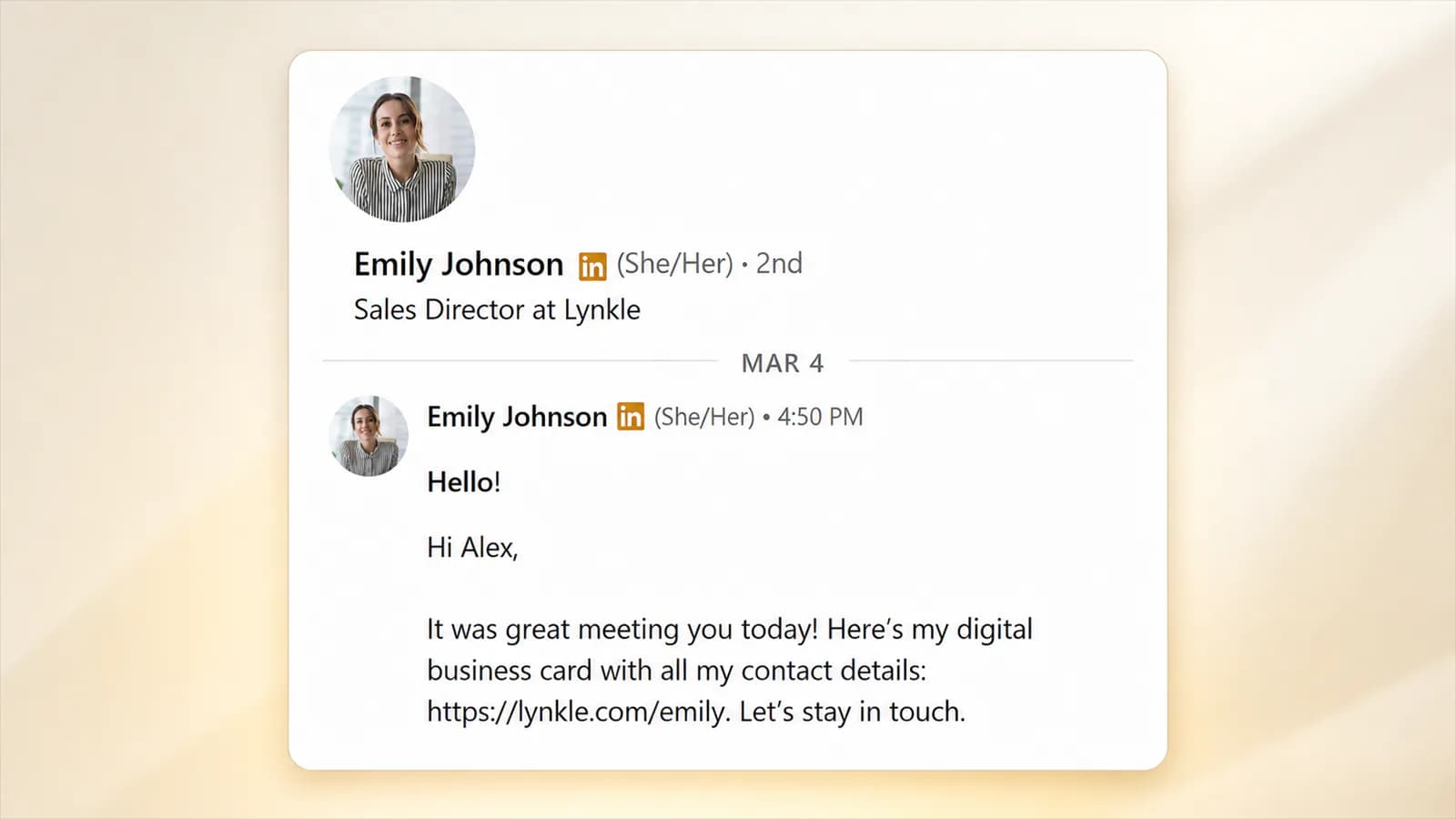
Send the card when the conversation has created a reason to exchange details. For broader channel advice, see how to share your digital business card. On LinkedIn, these three moments are especially natural.
After meeting in person
Great meeting you at the product meetup tonight. Here is my card with my direct details and portfolio: [card link]. I would enjoy continuing our conversation about the onboarding project.
When moving an active conversation off LinkedIn
Happy to continue this over email or a short call. My card has both options in one place: [card link]. Use whichever works best for you.
When someone asks for your details
Of course. Here is my digital card with my work email, phone number, and booking link: [card link].
Keep the explanation specific to the conversation. Do not drop the same card link into cold messages at scale. Without context, even a useful link looks like promotion.
How to add LinkedIn to your digital business card
The other half of the contact loop sends card visitors back to your professional profile. Copy the URL from your personal LinkedIn profile or company page, add it as a LinkedIn link on your card, and use a label that matches the destination.
- Use Connect with me on LinkedIn for a personal profile.
- Use Follow us on LinkedIn for a company page.
Test the finished link while signed out of your LinkedIn account. That check helps you see what a recipient can access under your current public-profile settings.
LinkedIn QR code versus a digital business card QR code
Choose the QR code based on the action you want. LinkedIn's official QR code guidance says a scan redirects someone to the member's LinkedIn profile. That is ideal when the goal is specifically to connect on LinkedIn.
A QR code business card opens the card instead. Use it when you want the recipient to choose between direct contact details, your website, LinkedIn, and another next action. Neither code is universally better. The destination should match the moment.
Common mistakes and privacy checks
- Repeating your full LinkedIn profile. Keep the card focused on contact and action.
- Using a stale profile URL. Test personal and company links after changing names, roles, or page settings.
- Sending an unexplained link. Tell the recipient why the card is useful in this conversation.
- Publishing every contact detail. Decide whether a work email, personal phone number, or address should be public before adding the card to your profile.
- Assuming every account has the same LinkedIn features. Check LinkedIn's current help pages and the controls visible on your account.
If you need different details for different audiences, review digital business card privacy before publishing one universal link. The right setup gives people a clear next step without exposing information they do not need.
Related reading
Ready to start your digital business card journey?
Get started for freeTrusted by the best