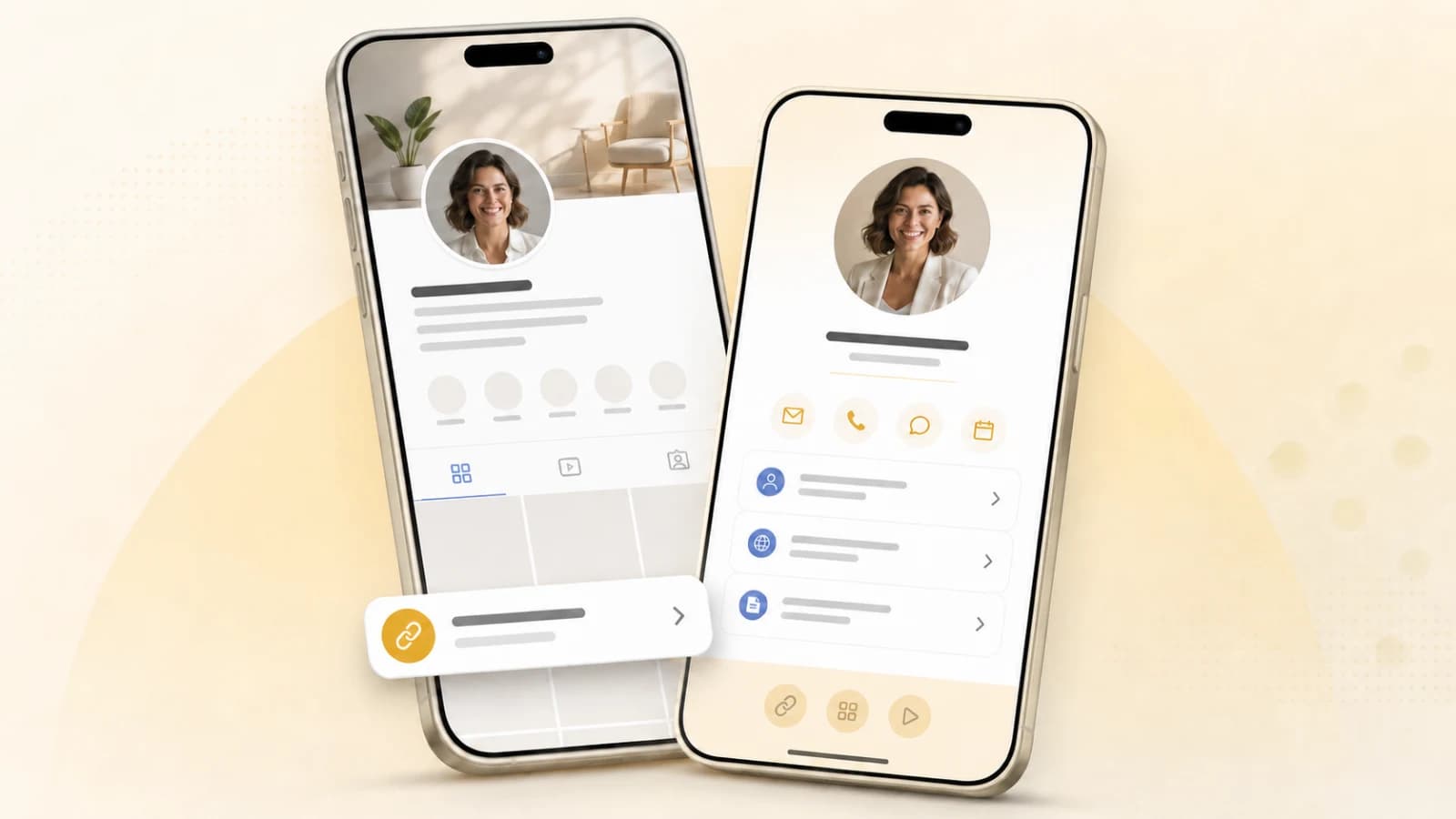
A digital business card link in bio gives social profile visitors one place to save your contact details, visit your website, view selected work, or book time with you. Copy the public link to your card, add it to the website or links area of your social profile, and label it with the action you want visitors to take.
The important decision comes before you paste the URL. A digital business card is a contact-first destination, while a conventional link-in-bio page is usually content-first. This guide helps you choose the right setup, prepare a card for a public audience, and add it to Instagram, TikTok, LinkedIn, YouTube, and X.
Should your link in bio open a digital business card?
Use a digital business card when your primary goal is helping someone identify, contact, or hire you. It works especially well for consultants, freelancers, real estate professionals, recruiters, founders, speakers, and anyone whose social profile supports a professional relationship.
Use a conventional bio-link page when visitors mainly need to browse content, products, affiliate offers, music, or several active campaigns. Neither format is universally better. The best destination is the one that makes the visitor's next action obvious.
| What you want the visitor to do | Best starting point | What the page should emphasize |
|---|---|---|
| Save or use your contact details | Digital business card | Name, role, contact actions, and save-to-contacts |
| Book or enquire about your services | Digital business card | Credibility, one contact method, and a clear booking action |
| Browse content, products, or current offers | Link-in-bio page | Current destinations, campaigns, and featured content |
| Do both | Focused hybrid or separate destinations | One primary action with secondary links kept below it |
Think of this as the contact-first versus content-first test. If a visitor should leave knowing how to reach you, the card is a strong destination. If they should choose what to watch, read, or buy, a content hub may fit better.
Prepare your digital card for a public social profile
A card shared in a social bio is available to a wider audience than a card sent after a conversation. Review it as a stranger would before making the link permanent.
Choose public contact details deliberately
Decide which details any profile visitor should be able to see. A work email, business phone number, contact form, or booking page may be more appropriate than personal contact information. Remove addresses and other details that do not help this audience take the next step.
Do not paste an expiring private-card link into a permanent social profile field. Use a public card for your bio, then reserve private card sharing for controlled exchanges where limited access is the point.
Give the card one primary job
A social visitor should not have to interpret a wall of equal-weight links. Choose one main action, such as saving your contact details, booking a consultation, requesting a quote, or viewing your portfolio. Place supporting links below that action.
Match the card to the profile
The name, photo, role, and visual identity on the card should feel like a continuation of the social profile. Consistency reassures visitors that they opened the intended page. Use the checklist in our guide to designing your digital business card to decide which fields and links earn a place.
Test the public experience
Open the card in a private browser window, test every action, and view it on a phone. Confirm that the card loads without an account, the main action is clear, and no private information appears unexpectedly. Test the final social-profile link after saving it too.
How to add your digital business card to social media profiles
Start with the full card URL, including https://. Use a dedicated website or links field whenever the platform provides one, because a URL typed into ordinary bio text may not be clickable.
- Open your profile and select Edit profile.
- Open Links, then choose Add external link.
- Paste your digital card URL and add a descriptive title.
- Save the profile, then open the link as a visitor.
A title such as "Save my contact details" or "Work with me" explains more than a raw URL. If Instagram gives you several link positions, place the card first only when professional contact is the profile's main conversion goal.
TikTok
TikTok's profile-link guidance says a website link is available to accounts with at least 1,000 followers or a registered business account, and that availability can vary. On an eligible account, open Edit profile, add the card under Links, then test it from the published profile.
TikTok viewers often arrive with little context. Make the card's top action specific to the account, such as booking a service, requesting a collaboration, or viewing your professional work.
Add the card as a website in your profile's Contact Info section. LinkedIn can also offer other link placements depending on the account and plan. Our dedicated guide explains how to use a digital business card for LinkedIn without duplicating your full professional profile.
YouTube
YouTube's channel-profile instructions let creators add profile links through YouTube Studio. Open Customization, select Profile, add the card under Links, and publish the change. YouTube says the first link receives the most prominent profile placement, so put the card first only when contacting you matters more than another destination.
X
X provides a dedicated website field. Its profile customization instructions direct you to open your profile, select Edit profile, enter the card URL under Website, and save. Use the bio text beside it to explain why someone should open the link.
Write a call to action that earns the click
"Link in bio" tells people where to look, but not what they will get. Pair the link with a short promise that matches the card's main action.
- Save my contact details for networking and professional profiles.
- Book a consultation when the card leads with a calendar.
- View my work and get in touch for portfolio-led profiles.
- Request a quote for local services and independent businesses.
- Speaking, press, and contact details for public-facing professionals.
Keep the wording accurate. If the card does not contain a booking link, do not promise booking. If it contains personal details you would not advertise in the CTA, reconsider whether those details should be public.
Common link-in-bio mistakes to avoid
- Using a private or expiring link. A permanent social placement needs a stable public destination.
- Publishing personal details by default. Review the card for strangers, not only people you already know.
- Giving every link equal priority. Lead with the action most relevant to the profile's audience.
- Repeating the social profile. The card should add direct contact and next actions, not reproduce the same feed and bio.
- Leaving the link unexplained. Add a short CTA so visitors know what waits on the other side.
- Skipping logged-out testing. A link that works only for you is not ready for a public profile.
Your social bio is only one sharing surface. For other online and in-person placements, read how to share your digital business card.
Related reading
Ready to start your digital business card journey?
Get started for freeTrusted by the best