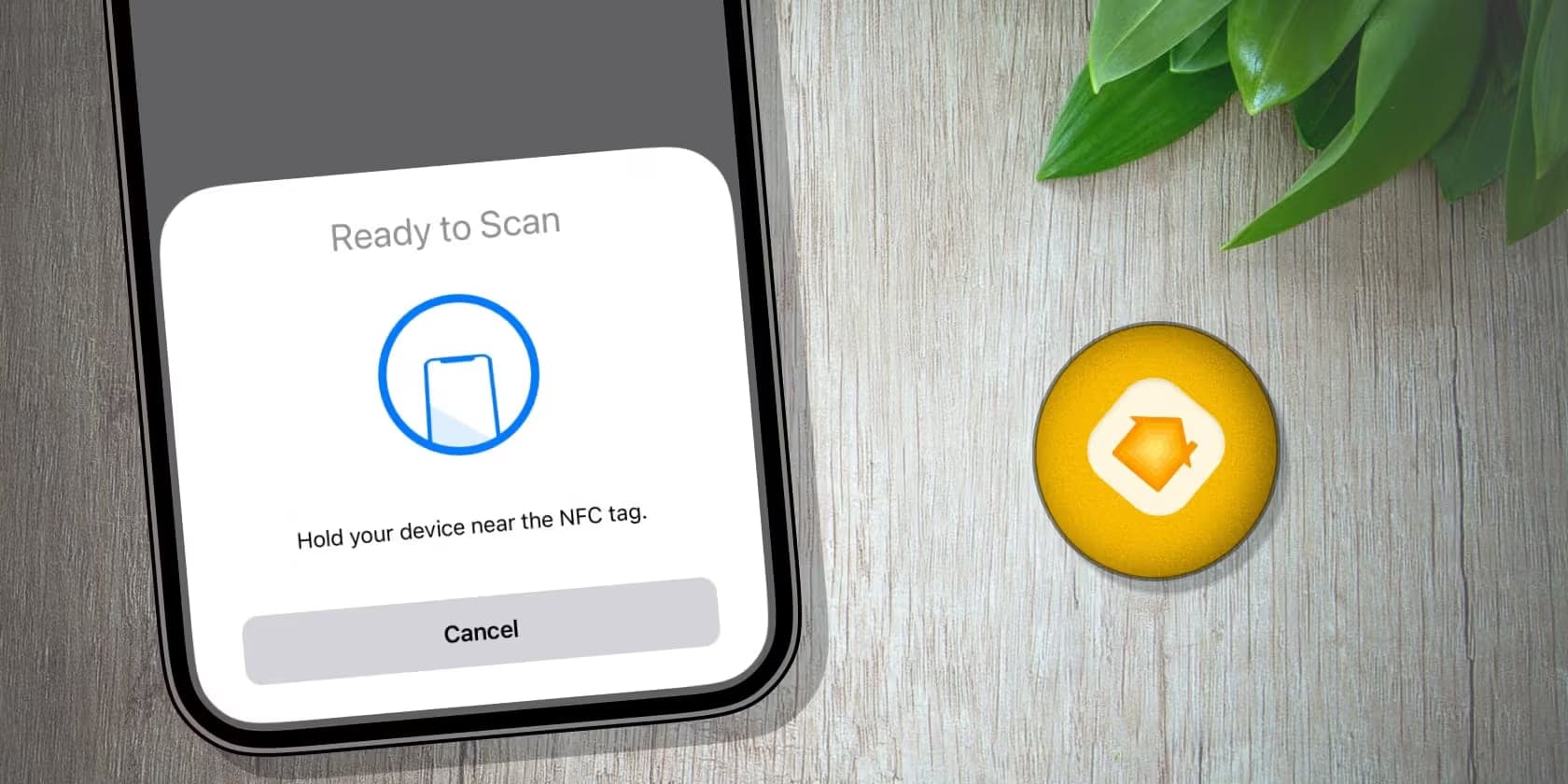
To create an NFC business card, start with a digital business card and an NFC-enabled phone. Android users can share phone to phone with Tap to Share in the Lynkle app, so no physical tag is required. Tap to Share requires Lynkle Pro or Teams. If you use iPhone, it is available only in the European Economic Area. If you want a physical card or tag, you can pair any compatible third-party hardware through the Lynkle app on Android or iOS. This guide walks through that separate, free tag-pairing setup.
What is an NFC business card?
An NFC business card uses Near Field Communication technology to instantly share your contact details when tapped against a smartphone. Instead of handing someone a paper card, you simply hold your NFC-enabled card or tag near their phone, and your digital business card opens automatically in their browser, no app download required.
Compatible writable third-party NFC tags can be embedded in cards, stickers, keychains, or phone cases. When paired with your digital business card URL, they work with NFC-enabled phones that support the tag.
Why use an NFC business card?
NFC business cards offer several advantages over traditional paper cards and even other digital sharing methods:
- Instant sharing: A single tap transfers your contact information. No fumbling with QR codes, typing URLs, or searching for business cards in your wallet.
- Always up-to-date: Since the NFC tag links to yourdigital business card, any changes you make online are immediately reflected. No reprinting necessary.
- Less paper waste: A reusable tag can reduce repeated printing when your details change.
- Memorable first impression: Tapping a card to share your info is a conversation starter. It shows you're tech-savvy and forward-thinking.
- Saves time: Skip the manual data entry. Recipients can save your contact information to their phone with one tap.
What you need to get started
Creating an NFC business card is straightforward. Here's what you'll need:
- NFC-enabled smartphone: You'll use an NFC-enabled iPhone or Android phone to pair the NFC tag.
- Compatible NFC tag: Lynkle is hardware agnostic, so you can use a compatible writable NFC card, sticker, keychain, or tag that can store a URL.
- Digital business card platform: You need a platform like Lynkle to create your digital card and get a shareable URL.
- Use the Lynkle app on iPhone or Android.
Step-by-step setup
Follow these steps in order. First create your card, then get a tag, then download the right app, then pair or write the tag.
Step 1: Create your digital business card
Sign up for a free account on Lynkle and create your digital business card. Add your name, title, company, contact details, social media links, and any other information you want to share. Customize the colors and design to match your brand. You can pair the NFC tag directly from the Lynkle app on iPhone or Android.
Step 2: Choose an NFC tag or card
If you already have a writable NFC tag, you can use it. If you do not, choose a card, sticker, or tag you like. Lynkle does not require proprietary hardware. Browse NFC cards on Amazon or custom NFC tags and cards on Etsy.
Step 3: Download the right app
Install the Lynkle app for your phone before you pair the tag:
- iPhone: Download the Lynkle iOS app from the App Store.
- Android: Download the Lynkle Android app from Google Play.
Step 4: Pair the tag with the Lynkle app
Use the native pairing workflow in the Lynkle app on iPhone or Android. You do not need to copy your card URL or use a separate NFC writing app.
- Open the Lynkle app.
- Find the card tile you want to pair with your NFC tag.
- Tap the "..." button on that card tile.
- Tap "Pair with NFC tag".
- When the scan screen appears, hold the NFC tag against your phone near its NFC antenna.
- Keep holding the tag there until the app confirms it is paired.
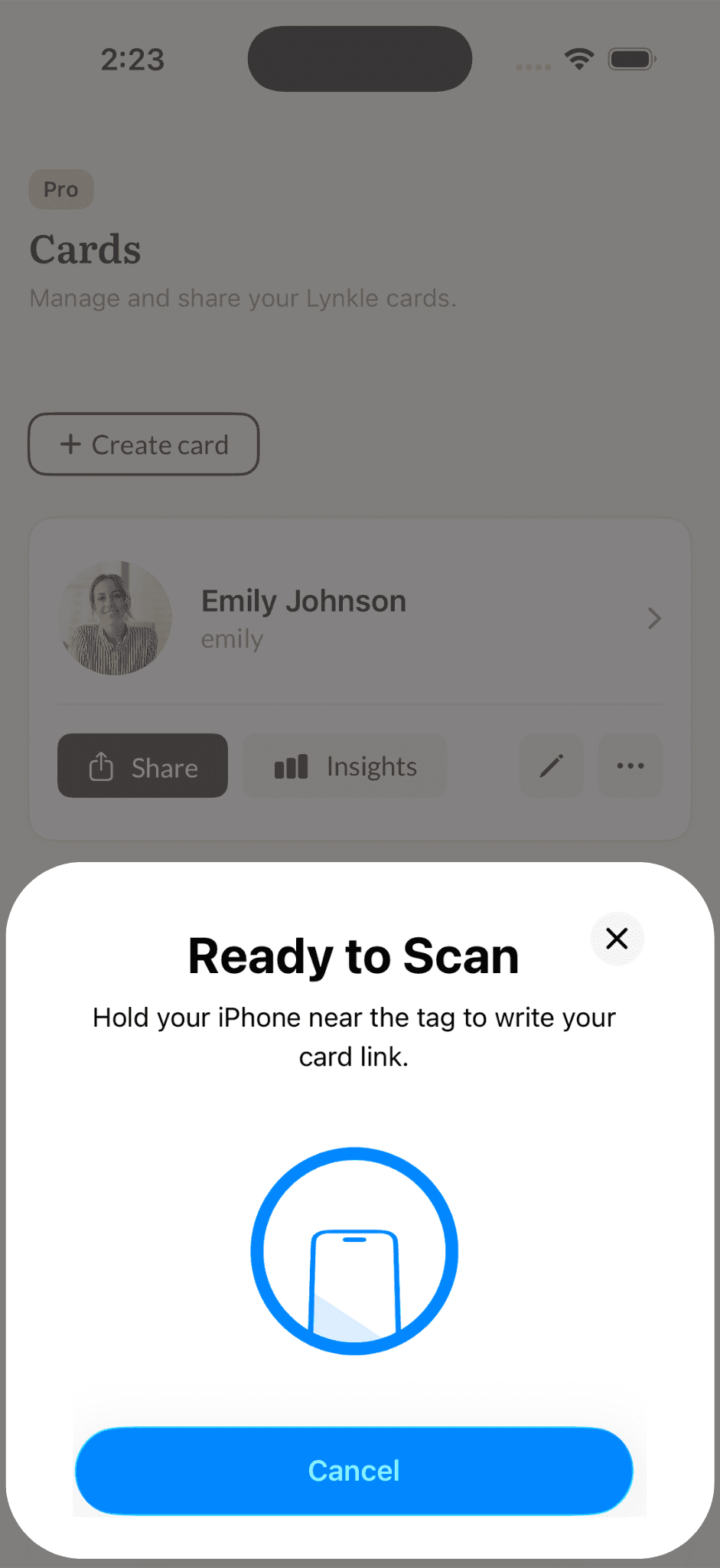
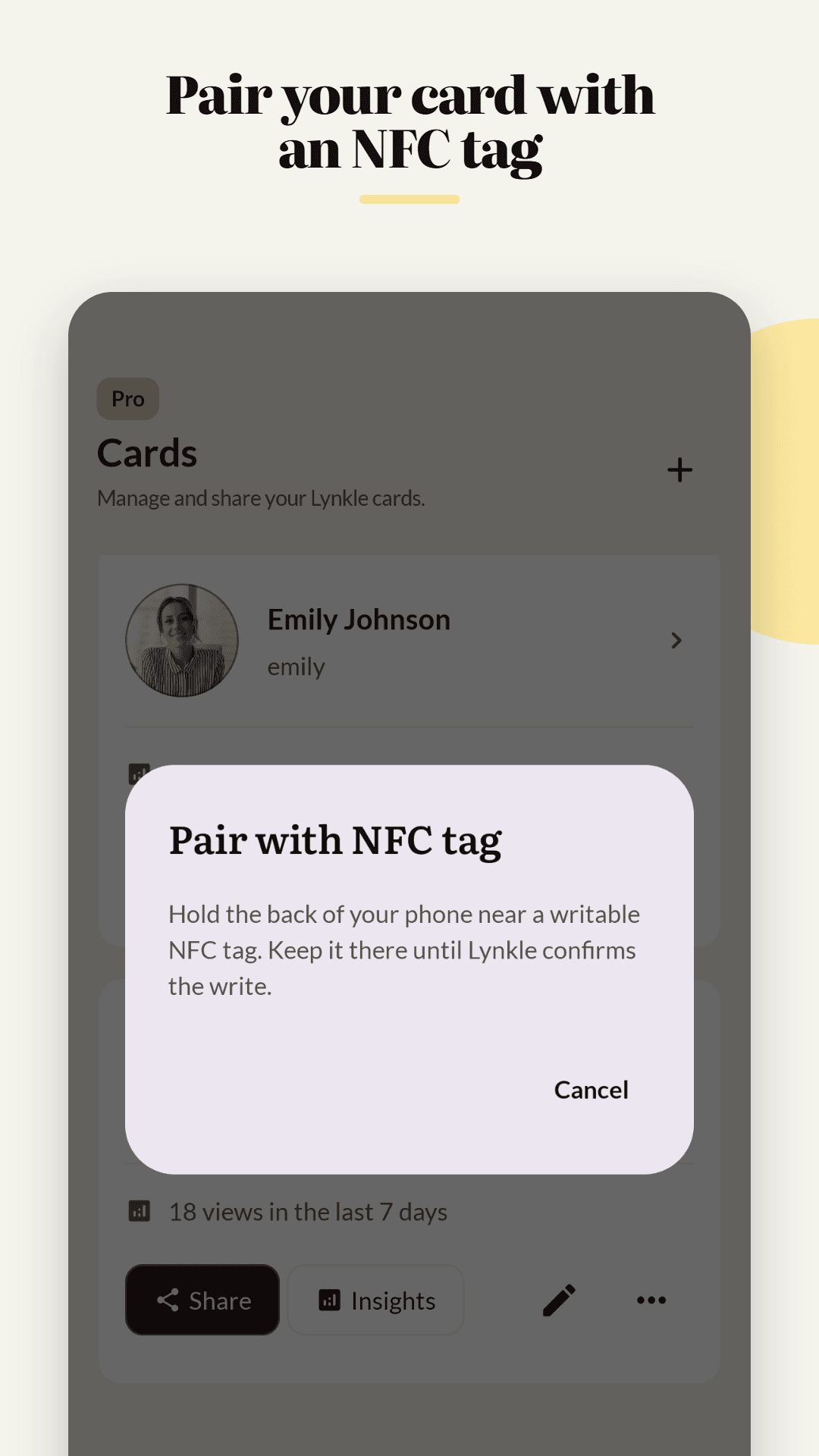
If native pairing does not work with your tag, a third-party writer such as NFC Tools is an optional fallback. Copy your Lynkle card URL, write it to the compatible tag as a URL record, then test the tag before use.
Step 5: Test your NFC business card
Hold your NFC tag near the top of your smartphone (where the NFC antenna is typically located). Your phone should display a notification or automatically open your digital business card in the browser. Test with different phones to ensure compatibility. For more on NFC security, see our guide on whether NFC digital business cards are safe.
Tips for sharing NFC business cards
- Placement: Attach your NFC tag to a physical card, phone case, lanyard, or sticker for easy access at networking events. The more accessible it is, the more likely you'll use it.
- Compatibility: Most modern smartphones support NFC, but some older devices may not. Always have a QR code or shareable link as a backup for those situations.
- Updates: Since your NFC tag points to your digital card URL, you can update your card information anytime without reprogramming the tag. Just edit your card on Lynkle and the changes are live instantly.
Related reading
Ready to start your digital business card journey?
Get started for freeTrusted by the best