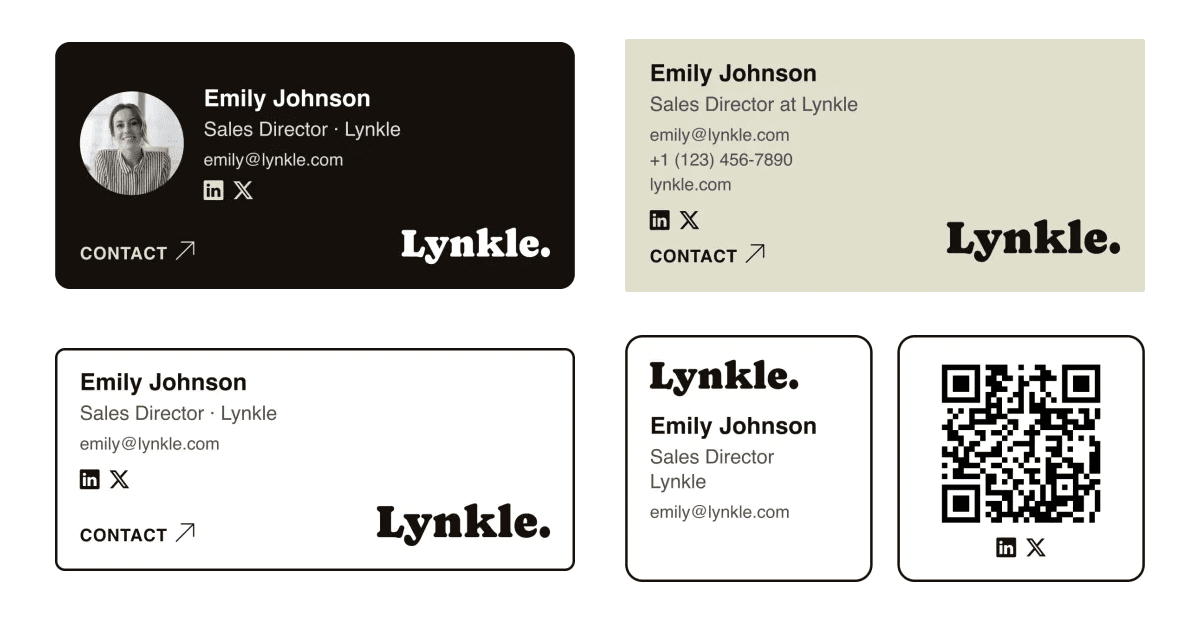
A digital business card email signature is a link or image at the end of your emails that opens your full contact card. Recipients can save your details and visit your links in their browser, with no app needed.
You can add your free Lynkle card link to an existing signature. For a signature with your logo, colors, photo, and contact details, use the Lynkle email signature generator. Saving and installing a branded signature requires Lynkle Pro or Teams.
Choose a signature that matches your brand
Pick a template, choose which contact details to show, and preview your changes. Depending on the template, your signature can include your photo, logo, email, phone number, website, social icons, and a QR code. You can also change the background, border, and shadow.
The signature is a clickable image. Clicking it opens your digital business card. The phone number, email address, and social icons pictured inside it are not separate links. Recipients use the contact details and links on your card after opening it.
How to create your Lynkle email signature
You need a public Lynkle digital business card and Lynkle Pro or Teams to save and install a branded signature.
- Open your Lynkle account, find the card you want to use, and select Email signature.
- Choose a template and the contact details to show. Use your card's colors or choose a different background, border, and shadow. Check the preview as you make changes.
- Select Create signature the first time. When editing an existing signature, select Save changes or Update signature, depending on the changes you made.
- Select Copy signature. If you see Copy saved signature, your card has changed since the signature was saved. Update the signature first if you want those changes included.
If you only want a text link, copy your public card URL and add it as a hyperlink in your email app's signature editor. You do not need a paid plan to share your free card this way.
Add your signature to your email app
Gmail
Connect Gmail from the Signature Studio and Lynkle installs your saved signature on your primary Gmail address. Every time you save a change, Gmail receives the new version automatically. You can also paste the signature yourself: in Gmail on a computer, open Settings, then See all settings, and add it under General and Signature. Follow our Gmail signature guide for both methods.
Outlook
With a Microsoft 365 work or school account, connect Microsoft 365 and use the Lynkle Outlook add-in to insert your latest saved signature. For other accounts, open Outlook's signature settings and paste your saved Lynkle signature. Menus differ between new Outlook, classic Outlook, and Outlook for Mac; see our Outlook signature guide.
Apple Mail on Mac
Open Mail, then Settings and Signatures. Select your email account and create a signature. Uncheck “Always match my default message font” before pasting your Lynkle signature, then choose it as your default. See Apple's signature settings guide for account and default-signature options.
Keep your signature up to date
Your digital business card shows your latest saved card details. Your email signature is a saved version, so review and save it in Lynkle after changing your details or design. With Gmail sync, saving is all you need to do. The Outlook add-in inserts your latest saved version. A pasted signature needs to be copied again and replaced in your email app. Previously sent emails are not rewritten.
Email signatures for your team
Lynkle Teams includes team email signatures. Select your team members' cards, customize one design with your logo and colors, and each signature keeps that person's own details.
Connect Google Workspace to deploy the signatures directly to each person's Gmail, or connect Microsoft 365 and deploy the Lynkle Outlook add-in so Outlook inserts them. Team members do not need to copy and paste anything, and you can publish an updated design to the whole team from one screen.
Check your signature before using it
- Show the contact details your recipients need and leave out the rest.
- Check that your card is public and that the signature opens the right card.
- Send a sample email and check it on a computer and phone.
- Some email apps block images. Consider adding a plain-text card link below the image so recipients can still open your card.
See Google's Gmail signature guide for signature defaults, or explore other ways to share your digital business card.
Related reading
Ready to start your digital business card journey?
Get started for freeTrusted by the best