Microsoft 365 email signatures
TeamsConnect your Microsoft 365 organization to manage email signatures from Lynkle Teams.
Before you start
- A Lynkle Teams subscription with organization owner access.
- A Microsoft 365 work or school organization with Exchange Online mailboxes.
- An active Global Administrator account in the organization you want to connect. Lynkle requires this role to verify the organization.
You can connect before creating cards. Each person needs an existing public Lynkle card to receive a signature. Keep Lynkle open in the same browser while completing Microsoft sign-in.
Connecting verifies your organization and administrator account. It does not install an Outlook add-in, verify every mailbox, or change existing signatures.
Set up Outlook
- Open Outlook setup
In Settings > Integrations > Email signatures, open your connections and select Connect beside Microsoft 365. You can also start from Connect email provider on the team email signatures screen. If setup is in progress, select Continue setup. After insertion has been verified in this browser tab, use Manage > Outlook add-in setup beside Microsoft 365 to reopen setup.
- Connect and approve access
Select Connect Microsoft 365 and sign in as a Global Administrator. If you use Privileged Identity Management, activate that role first. Lynkle then takes you to Approve Outlook sign-in. This grants consent for your organization to Lynkle's
EmailSignature.Readpermission, allowing the add-in to retrieve each signed-in user's assigned signature. Complete this approval in the same browser tab to continue to installation. - Install the add-in
Follow the download and Microsoft admin center instructions shown in Lynkle. After deploying to your chosen users, select I've deployed the add-in.
- Publish and verify
Select Choose signatures, customize your cards, and publish them to Microsoft 365. Then open Outlook and compose a new HTML email. Return to Continue setup and select Check insertion to see whether Outlook has reported success.
Select an available step to move back or forward. Steps are disabled until their prerequisites are complete. Refreshing keeps the selected step, and Lynkle keeps setup progress in the current browser tab. Installation is verified by an actual insertion report, not by downloading the manifest or returning from Microsoft. You do not need to register an Entra application, configure redirects, or create a client secret.
What does connecting do?
Microsoft supplies signed identity information, and Lynkle checks the administrator role and organization in that information. This connection step requests openid, profile, and email, which provide sign-in and basic profile information. It also requests User.Read, User.ReadBasic.All, and offline_access. Lynkle uses read-only basic user details to match the primary email addresses you select to users in this tenant. It does not synchronize your directory, create cards, read messages, send mail, or edit contacts. Microsoft's sign-in permission reference explains these scopes.
The Global Administrator requirement is a Lynkle connection requirement. It is not a claim that every Microsoft sign-in or every Office add-in deployment requires that role. A successful connection does not confirm Exchange Online licenses, mailbox availability, or Outlook add-in installation.
An existing Outlook contact-sync connection does not automatically create an email signature connection. You can use the same Microsoft organization for both, and manage each connection separately in Lynkle.
Choose your cards
Follow Team email signatures to select existing cards and customize one design. Each signature keeps its own person's details, even when the cards are all owned by one administrator. Pending cards and invitations are excluded.
Install the Outlook add-in for your team
- In Outlook setup, select Download add-in and save the XML file.
- Select Open Microsoft admin center, or open Integrated apps as your tenant administrator.
- Select Add-ins near the top, then Deploy Add-in. Choose the option to upload a custom manifest and select your XML file. If your portal instead offers Upload custom apps, choose Office Add-in and upload the same file.
- Under Assign Users, select Specific users / groups and choose the intended recipients. Start with one licensed test mailbox.
- Under Deployment Method, explicitly select Fixed, then select Deploy. If the portal rejects the default choices, reselect the recipients and deployment method before submitting.
- Return to Lynkle and select I've deployed the add-in. Microsoft may take time to distribute it to Outlook clients.
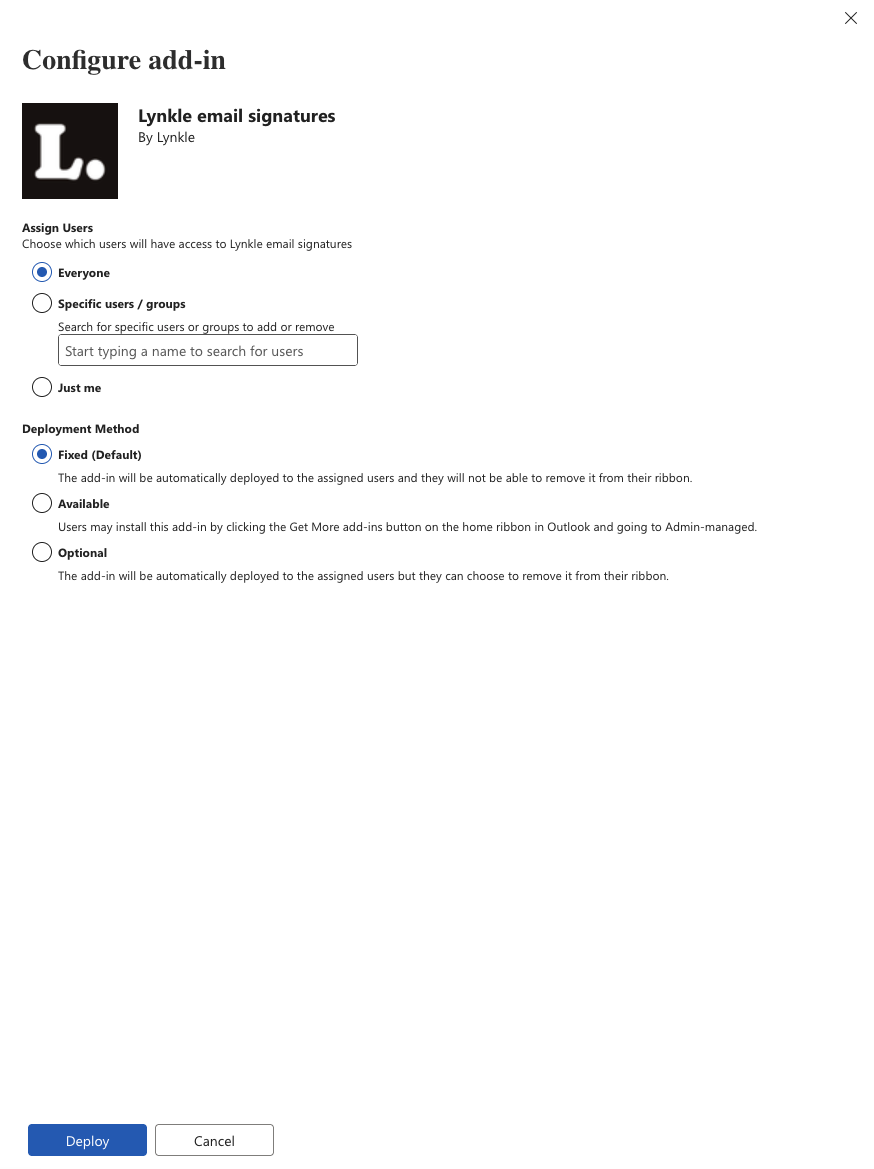
Microsoft documents both the Integrated apps upload flow and the Add-ins deployment wizard. Your recipients need licensed Exchange Online mailboxes. Individually managed signatures use the Outlook add-in guide.
Publish signatures
- In Lynkle, select the existing cards and choose Customize signatures.
- Choose the shared design and select Microsoft 365 under Email provider.
- Select Review and deploy, then check each primary Microsoft 365 mailbox. The visible email printed on a card and the mailbox receiving its signature can differ.
- Select Publish N signatures to Outlook, where N is the number of signatures to publish. Lynkle matches each address to one directory user in your connected tenant. Keep the page open until every card shows a result.
- Ready for Outlook means the signature is available to the add-in. Inserted in Outlook means the add-in reported inserting that version into a message. It does not mean every device has installed the add-in or that a message was sent.
With administrator deployment and permission approval complete, the add-in inserts the assigned signature when a user starts a new message, reply, or forward. It also handles changes to the From account. It changes the signature region, not the message text, and does not send the message. Users can also open Lynkle signatures and select Insert signature.
Only primary Microsoft 365 work or school accounts are supported. Aliases, shared mailboxes, guest accounts, personal Outlook.com accounts, and automatic card creation are not included. A shared mailbox may match a directory entry and show Ready for Outlook, but that does not make it supported. It cannot use another user's signed-in identity to retrieve a signature. Choose each person's own primary mailbox.
Outlook client requirements
Use Outlook on the web, new Outlook for Windows, or a Windows/Mac version supporting both Mailbox 1.13 and NestedAppAuth 1.1. The add-in uses Microsoft's current sign-in mechanism; unsupported clients must be updated. This package does not activate on Outlook mobile. See Microsoft's Outlook requirement sets and nested app authentication guidance.
Automatic background activation requires administrator deployment. Individually installed add-ins use the manual Insert signature action. Offline operation is not supported: Lynkle checks the active assignment before insertion. An unavailable connection leaves existing message text unchanged and does not schedule another attempt.
Remove signatures
In Email signatures, select the cards, then select Remove signature (or Remove N signatures) and confirm. The add-in stops inserting those signatures into new messages, replies, and forwards. Signatures already inserted into drafts or sent messages are not changed.
Disconnect or reconnect
Open Email signatures, select Manage connections or Connect email provider, open Manage beside Microsoft 365, then select Disconnect and confirm with Disconnect email signatures. Lynkle keeps your cards and saved designs, but pauses its mailbox assignments and stops new Outlook insertions. Outlook contact sync stays connected, and signatures already inserted into messages remain unchanged.
To reconnect, reopen that panel, select Connect or Manage > Reconnect Microsoft 365, and sign in as a Global Administrator of the original organization. Reconnecting makes existing publications unavailable for new Outlook insertions, even if the connection was still working. Review and publish the affected signatures again after reconnecting. Paused assignments also need to be published again to resume. A different tenant is rejected to prevent existing assignments from moving to another organization.
Disconnecting in Lynkle does not delete the Microsoft enterprise application or revoke its permissions. Use the relevant disconnect action in Lynkle when you only want to stop one integration. Removing a shared enterprise application or revoking its permissions in Microsoft Entra can affect other integrations that use it.
Troubleshooting
-
Your administrator account is rejected: check that it has an active Global Administrator role in the organization you are connecting. Contact Lynkle support if verification still fails.
-
The wrong organization is selected: start again and choose the administrator account belonging to the intended Microsoft 365 organization. Reconnection must use the original organization.
-
Microsoft reports a sign-in or callback error: return to Lynkle and start the connection again. If the error persists, share the message shown on screen and the setup step with Lynkle support, without including passwords or tokens. Lynkle may show a general message rather than Microsoft's detailed error.
-
A personal Outlook.com account does not work: team connections require a Microsoft 365 work or school organization.
-
Your existing Outlook signature has not changed: publish the signature in Lynkle, install the add-in for that user, approve its sign-in permission, and compose a new HTML message. Connecting and previewing alone do not publish signatures.
-
Lynkle asks you to approve mailbox matching: open Manage > Reconnect Microsoft 365 and complete administrator sign-in again, then review and publish the signatures again.
-
Every mailbox fails with "could not be prepared": check your connection and Microsoft access policies. If the stored authorization has expired or been revoked, reconnect Microsoft 365, then review and publish the signatures again. A failed deployment alone does not identify the cause.
-
The add-in asks for sign-in: open Lynkle signatures in Outlook and select Insert signature, or ask your administrator to complete Set up Outlook > Approve Outlook sign-in.
-
The address cannot be matched: use the user's unique primary mail address in the connected tenant, not an alias or guest address.
-
The connection expires or reports an invalid request: reopen the panel and start again in the same browser. Complete sign-in within five minutes; do not reuse an old callback link.
-
Sign-in is blocked by your organization's policy: ask your Microsoft 365 administrator to review the relevant access or consent policy. Registering another application is not a customer setup step.
-
The Microsoft 365 connection button is unavailable: contact Lynkle support.